

Your blog
Your blog is for guides, best-of lists and news about your directory. Its posts show on the Blog page, newest first, and the latest three can show on your homepage.
Write a post
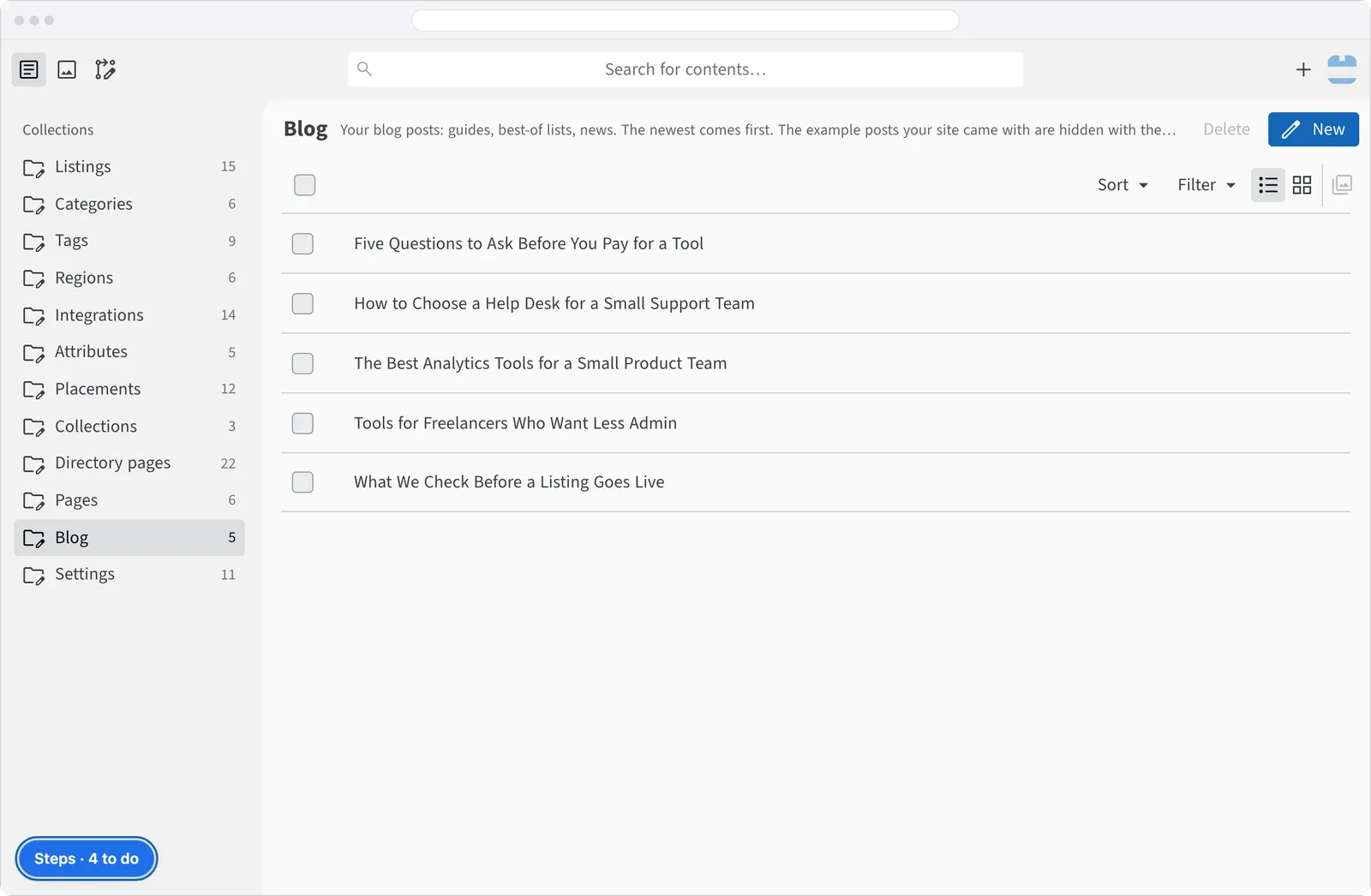
Section titled “Write a post”- In the editor: Blog, then New.
- Fill in the form:
- Title: the post’s heading.
- Description: one or two sentences, shown on the post’s card and in search results.
- Category: a word or two above the title, like “Guides” or “Best of”.
- Date: the day it’s published.
- Cover image: optional. A wide picture, at least 1200 pixels across. Without one, your site draws a cover in its own colours, with the title on it.
- Post: the post itself. A line starting with
##becomes a heading, and the post’s contents list is made from those headings.
- Click Save. It’s on your site in about 3 minutes.
Not ready yet? Turn on Draft before you save: the post stays off your site until you turn it off.
To show your newsletter’s sign-up form under each post, or on the blog’s list of posts: Settings → Newsletter → Where it shows (Your newsletter).
Change or delete a post
Section titled “Change or delete a post”In the editor: Blog, then the post. Change it and click Save, or delete it from the menu (⋮) at the top right.
The example posts
Section titled “The example posts”Your site comes with a few example posts, marked Example post. They’re hidden with the example listings: Settings → Features → Show the example listings, turned off. Nothing is deleted, so turning it back on shows them again.
While your blog has no posts to show (none written yet, or only the example ones, hidden), the Blog links leave your menu and the bottom of your pages, and the blog’s page says it has no posts yet.
Posts written by hand
Section titled “Posts written by hand”The editor lists the posts saved as Markdown files (ending in .md). A post your developer wrote
with components in it (ending in .mdx) is on your site as usual, but isn’t in the editor’s list:
it’s changed in its file.