

Your site’s look
Every page of your site keeps the same parts in the same places. A look changes how they look: the colours, the fonts, the corners, the edges of cards, and the space between sections. You can change it any time, and nothing on your pages is lost.
There are six looks:
| Look | What it is | Suits |
|---|---|---|
| Sable (the default) | Navy and old brass on bone. A round geometric sans for titles, a clear sans for reading, buttons and labels. | Any directory that wants to feel established and trustworthy: business software, professional tools |
| Graphite | Cool greys and a slate blue. One clean sans, with prices and counts in a typewriter-style face. | Software, developer tools, data |
| Cordovan | Oxblood and cream on ivory. Italic titles, a warm sans, and cards with a double frame. | Online shops and their apps, food and drink brands online, lifestyle products |
| Gallery | Chalk, soft black and silver. A fashion-magazine serif for large titles, a plain sans for the rest. | Design, architecture, fashion, art |
| Linen | Greige and plum. A tall serif for titles, softly rounded cards. | Wellness and beauty apps, creative tools, communities |
| Atlas | Mist greys and heather. A sturdy serif for titles and a very easy-to-read sans. | Travel and booking apps, maps and location tools |
Other alphabets: Sable’s title font has Latin letters only. A title in Cyrillic, Greek or Vietnamese shows in your visitor’s system font instead; the rest of the page is unchanged.
You can choose a look in three ways: in the editor, on GitHub’s website, or with the Terminal setup. They all change the same settings file.
In the editor
Section titled “In the editor”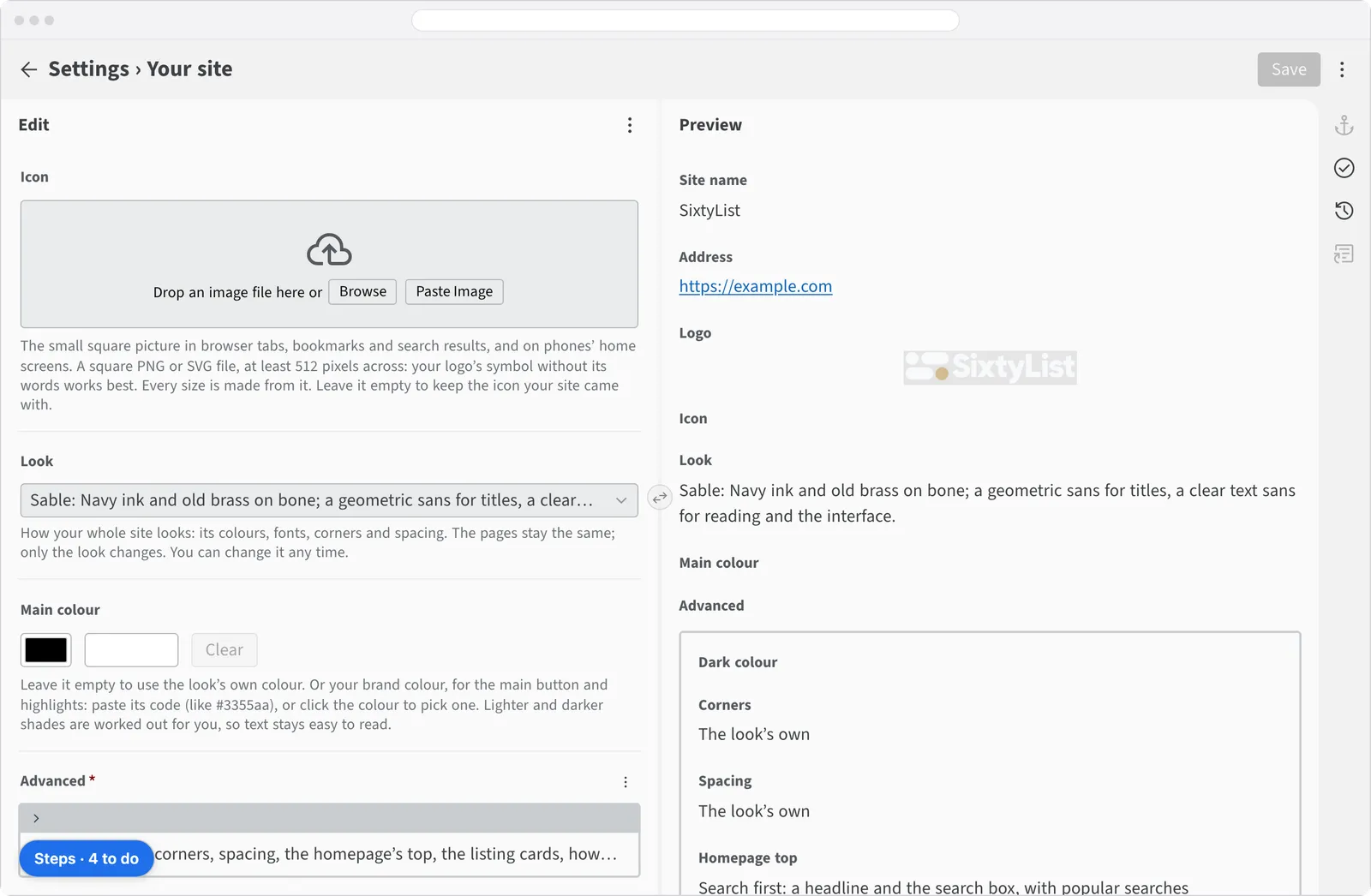
- Go to Settings → Your site.
- Under Look, choose one.
- To use your own brand colour, type its code in Main colour (like
#3355aa). Leave it empty to use the look’s own colours. - Under Default theme, choose how your site opens: Follow the visitor’s device (dark for visitors whose phone or computer is set to dark, light for everyone else), Light or Dark. It’s only where a visitor starts: they can always switch with the switcher at the top and bottom of every page, and their choice is remembered in their own browser.
- Click Advanced for the rest:
- Dark colour: the top and bottom of every page. Leave it empty for the look’s own.
- Corners: The look’s own, Square, Slightly rounded or Rounded.
- Spacing: The look’s own, Compact or Airy.
- Homepage top: Search first, Search and picks (three of your Editor’s picks beside the search), or Compact (a shorter top, so your categories show sooner).
- Listing cards: Cards, Rows (more on a screen) or Tiles (the logo first).
- Movement: Expressive (sections slide and fade in as visitors scroll) or Calm (almost nothing moves).
- Homepage background: what’s behind the search box at the top of the homepage: Plain, A faint grid or Soft shapes.
- Click Save. Your site updates in about 3 minutes.
On GitHub’s website
Section titled “On GitHub’s website”Use this if the editor isn’t set up yet, or you’d rather change the file yourself.
- On github.com, open your site’s repository. (A repository is the folder of your site’s files that GitHub keeps: the setup made it, named after your site.)
- Open the folders src, then config, then settings, and click site.json.
- Click the pencil button (Edit this file) at the top right of the file.
- Change the values you want. Keep the quotation marks and commas as they are.
- Click Commit changes…, then Commit changes again. Your site updates in about 3 minutes.
The settings, with the values each one takes:
| Setting | Where in the file | Values |
|---|---|---|
| Look | "look" |
"sable", "graphite", "cordovan", "gallery", "linen", "atlas" |
| Main colour | "mainColour" |
a colour code, like "#3355aa"; leave the line out for the look’s own |
| Default theme | "theme" |
"auto", "light", "dark" |
| Dark colour | "darkColour", inside "advanced" |
a colour code; leave the line out for the look’s own |
| Corners | "corners", inside "advanced" |
"look", "square", "soft", "round" |
| Spacing | "spacing", inside "advanced" |
"look", "compact", "airy" |
| Homepage top | "homeHero", inside "advanced" |
"search", "split", "compact" |
| Listing cards | "cardStyle", inside "advanced" |
"card", "row", "tile" |
| Movement | "motion", inside "advanced" |
"expressive", "calm" |
| Homepage background | "heroPattern", inside "advanced" |
"none", "grid", "shapes" |
For example, Gallery with rounded corners and tiles:
{ "name": "Danny's Directory", "address": "https://www.dannysdirectory.com", "logo": "/images/logo.svg", "look": "gallery", "advanced": { "corners": "round", "spacing": "look", "homeHero": "search", "cardStyle": "tile", "motion": "expressive", "heroPattern": "none" }}If a value isn’t one the site knows, your site keeps the one it had, and the editor says which setting to fix.
With the Terminal setup
Section titled “With the Terminal setup”- In your site’s folder, run
npm run setup. - Choose Change how your site looks.
- Answer the five questions: the look, the corners, the spacing, the top of your homepage, and how listings show. Press Enter to keep what’s there.
- If your site is already live, it asks whether to put the change live now (about 2 minutes).
Seeing them before you choose
Section titled “Seeing them before you choose”Each look has a preview of the real pages. On your computer, run npm run dev and open
http://localhost:4321/_brand. It shows every look’s colours, fonts and contrast checks, and your own
pages in each look side by side. It’s on your computer only: your live site doesn’t have it.
Light and dark
Section titled “Light and dark”Every look has a dark version, made from its own colours (and from your Main and Dark colours, if you set them), and checked for contrast like the light one. In dark mode the light parts of each page turn dark; the top and bottom of every page and the dark bands stay as they are, so your logo is the same in both. Listings’ logos keep a light tile behind them.
Visitors switch with the sun and moon button at the top of the page (in the menu on a phone) or the Device, Light and Dark choices at the bottom. Browsers older than Safari 17.5, Chrome 123 or Firefox 120 show the light site, without the switcher.