

Videos, maps and other embeds
You can show a video, a map or a booking page in a listing’s description, a blog post or one of your pages. The service gives you a short piece of code to put on a website, and you paste it into an Embed block.
Add one
Section titled “Add one”- On the service’s site, copy the code to put it on a website, its embed code. It usually starts
with
<iframe. Each service’s help shows where it is:- YouTube: a video’s embed code (YouTube’s help).
- Vimeo: a video’s embed code (Vimeo’s help).
- Google Maps: a map’s embed code (Google Maps’ help).
- Calendly: your event’s inline embed code (Calendly’s help).
- Cal.com: your event’s link. Your site shows it in a frame.
- Spotify: a song’s, album’s, playlist’s or podcast’s embed code (Spotify’s help).
- beehiiv or Substack: the sign-up form’s embed code (beehiiv’s help).
- In the editor, in the text box (a listing’s Description, a post’s Post, or a page’s text): click where it should go, then Insert → Embed: video, map, booking page.
- Paste the code into Embed code.
- Save. It’s on your site in about 3 minutes.
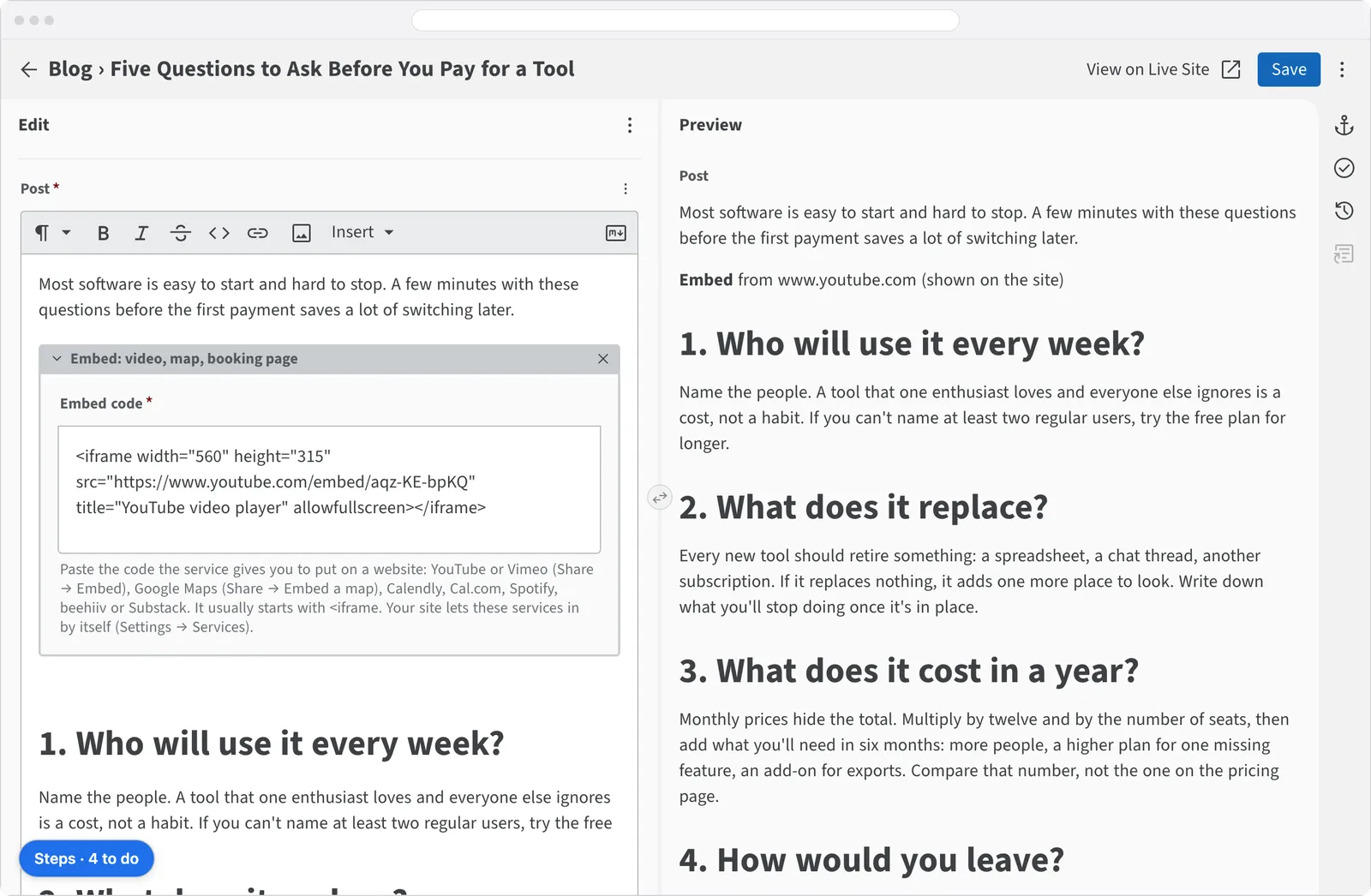
Paste the code into the Embed block, not into the text itself: pasted into the text, it’s saved as words, and visitors would see the code. If that happens, a note in the editor says where, and what to do.
A newsletter sign-up form pasted this way takes the place of your site’s own on that page: it shows neither the newsletter section nor the small form at the bottom (Your newsletter).
A service’s own frame (a video, a map, a sign-up form from your newsletter service) stays as the service draws it, light, in dark mode.
Your site lets these services in by itself
Section titled “Your site lets these services in by itself”Your site has security settings that stop code from other websites running on your pages, so a script that slips into your content can’t do harm. The services above are let in by themselves, on the pages that show them.
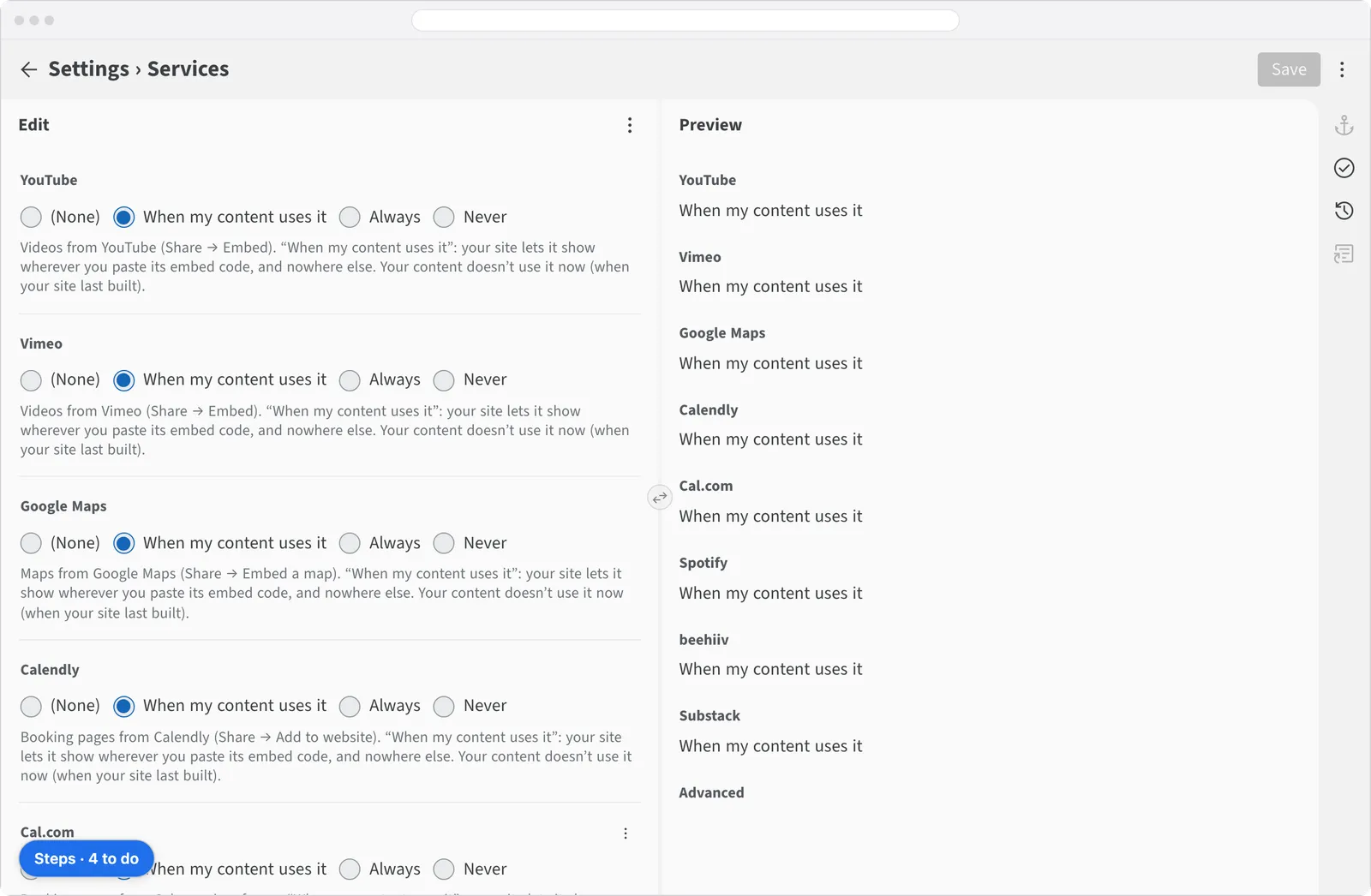
Settings → Services lists them. For each one: When my content uses it (the usual choice), Always, or Never. Each one’s description says whether your content uses it now, and where, and most link to the service’s help on where its code is.
A service that isn’t listed
Section titled “A service that isn’t listed”Paste its embed code into an Embed block, as above, and save. Once your site is updated, a note in the editor says your site blocks it, with its address and what it’s for. If you trust that service:
- Settings → Services → Advanced → Other addresses, and add one.
- Address: the address the note names, like
https://widget.example.com. - What it’s for: the one the note names, like Shown in a frame on a page.
- Save. If your site can’t use what you typed, the editor says what’s wrong, and saves nothing.
Some services give you code that runs on the page itself (a <script> with code inside it, rather
than an address). Your site never runs that, wherever it’s pasted, and a note in the editor says
so. Look for the service’s “iframe” version, or ask your developer to add it to your site.
Not yet in SixtyList
Section titled “Not yet in SixtyList”- A Video field on listings, with the video at the top of the page: not yet. Add the video to the listing’s Description with an Embed block instead.
- A chat widget (like Crisp, Intercom or Tawk.to): these run code on every page, which your site doesn’t allow from the editor yet. Your developer can add one: The security policy says how.