

Your newsletter
If you send a newsletter with Kit (ConvertKit), Mailchimp, Buttondown or beehiiv, your site can show its sign-up form: an email box and a button, in your site’s own look, in the places you choose. What visitors type goes straight to your newsletter service. Your site keeps nothing.
Set it up
Section titled “Set it up”- In your newsletter service, make a sign-up form (or use the one you have) and copy its embed
code: the code for putting it on a website. Your service’s help shows where it is:
- Kit: an inline form, with any template, since your site uses its own look. Copy its HTML embed code, all of it (the JavaScript one works too). Kit’s help on embedding a form
- Mailchimp: your embedded form’s code. Mailchimp’s help
- Buttondown: your subscribe form’s embed code. Buttondown’s help
- beehiiv: your subscribe form’s embed code. beehiiv’s help
- In the editor: Settings → Newsletter.
- Newsletter service: yours.
- Your form, from the service: paste the embed code, all of it, as it is: your site keeps only what it needs.
- Where it shows: the bottom of every page to start with. You can add more places (below).
- Change the Heading, the Line under it, the Button and the Small print (under the email box, like “Unsubscribe any time.”; leave it empty to show none), if you like.
- Click Save. The form is on your site in about 3 minutes.
- Check it: sign up on your site with your own address, as a visitor would, and confirm from the email your service sends (Confirming subscribers).
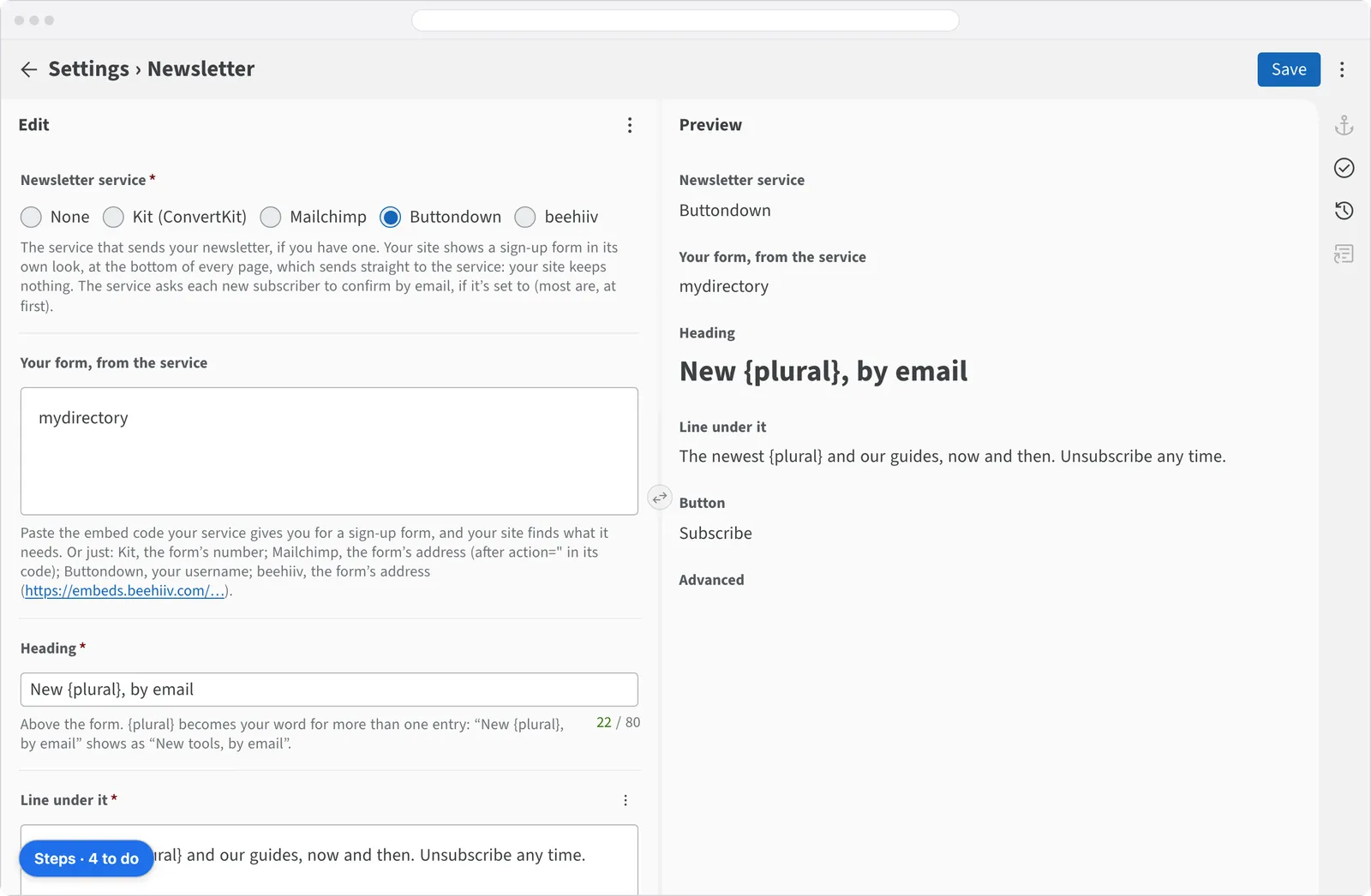
When you save, your editor checks what you pasted. If it can’t use it, it says what’s wrong and what to paste instead, with a link to your service’s help, and saves nothing.
beehiiv gives no form your site can send to, so your site shows beehiiv’s own form instead, in its look.
A service’s own frame (a video, a map, a sign-up form from your newsletter service) stays as the service draws it, light, in dark mode.
Where it shows
Section titled “Where it shows”Where it shows offers five places. Choose any:
- The bottom of every page (a small form)
- The homepage
- Under each blog post
- The blog’s list of posts
- Each listing’s page
Outside the bottom of the page, the form is a section of its own, in your site’s look: your heading and line on the left, the email box on the right.
A page never shows two sign-up forms. Where the section is, the bottom of the page leaves its small form out. A page with a sign-up form of its own in its text (pasted with Insert → Embed: Videos, maps and other embeds) shows neither.
Updating from an earlier version? If you’d turned on Also on the homepage or Also under each blog post, those places are already ticked in Where it shows.
After signing up
Section titled “After signing up”What a visitor sees after Subscribe depends on your service:
- Kit: they stay on your site. Your site sends the address to Kit and, once Kit accepts it, shows
your After signing up message in place of the form and its small print.
{email}in it becomes the address they typed. If Kit refuses the address, a line under the box asks them to check it and try again. - Mailchimp, Buttondown and beehiiv: they see the service’s own page, and After signing up isn’t used. (Mailchimp and Buttondown follow in a later update.)
Confirming subscribers
Section titled “Confirming subscribers”Most newsletter services send each new subscriber an email asking them to confirm (this is called double opt-in). That’s set in your service, not on your site: look for double opt-in or confirmation email in its help. Keep it on: it keeps mistyped and fake addresses off your list, and some countries’ laws expect it.
Good to know for Kit: check it with your own address first: subscribe from your site, then confirm from Kit’s email. A new Kit account’s confirmation emails can land in Junk, arrive late, or not arrive at all. Until someone confirms, they’re in Kit’s subscribers as Unconfirmed, and Kit’s form report doesn’t count them, so a sign-up can reach Kit while the report still says 0. Kit’s help on unconfirmed subscribers
If it doesn’t go live
Section titled “If it doesn’t go live”If the build after you save fails, the note at the bottom right of your editor names the Settings page you changed. Open the build: the end of its log says what stopped it. If it names your newsletter setting, open Settings → Newsletter, put back what you changed (or paste the code again), and save. If the log is about something else, choose Retry build: it may be a problem at your host.
Your privacy page
Section titled “Your privacy page”Say on your privacy page that people who subscribe give their email address to your newsletter service, and link to its privacy policy (Pages → Privacy).
Not yet in SixtyList
Section titled “Not yet in SixtyList”Sending emails from your site itself (a welcome email, or new listings each week) comes in a later update. Until then, your newsletter service sends them.